Your Questions, Answered
We’ve assembled the most frequently asked questions about Eversense into one place. Got a question that you can’t find the answer to? Contact us.
Multiple event icons can be added for the same time period.
Manual blood glucose entries cannot be edited. Meals, Insulin, Health, and Exercise icons may be edited by going to the Event log and tapping on the entry.
An event icon can be modified or hidden after it was previously saved. From the Event Log, click on the event icon you would like to modify. Once the changes are made, tap Save.
To remove an event icon, select the event icon you would like to modify, scroll down to the bottom of the page and select “Hide Event”. This will remove the event icon from the home page.
Manual blood glucose (BG) Entry:
⮚ Can be hidden
⮚ Cannot be edited
⮚ Cannot be deleted
Events:
⮚ Can be hidden
⮚ Can be edited
⮚ Cannot be deleted
Pinch in and out on the screen to display different day/time ranges on the trend graph. You can view as few as 3 hours or up to 3 days of information on the My Glucose screen.
You can view the trend graph in either portrait or landscape mode. In landscape mode, there are shortcut buttons to see 7, 14, 30 and 90 day views and to email the graph.
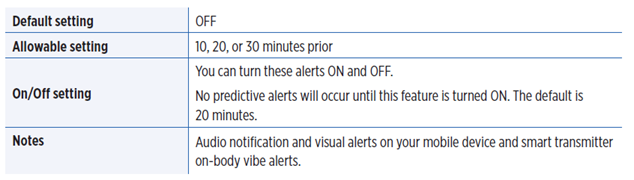
The Eversense® 365 CGM System does have Predictive Alerts. To utilize this feature, you will need to turn it on in the App.
Predictive Alerts let you know in advance that a high or low glucose event is likely to occur if current trends continue.
Predictive Alerts use the Low and High Glucose Alert levels to provide an “early” warning. When you have reached the early warning time, the smart transmitter vibrates, and the mobile app gives an audible alert as well as displays a message on the screen. You should immediately perform a finger stick blood glucose test before making a treatment decision.
To turn this feature ON, tap Menu > Settings > Glucose to display the GLUCOSE SETTINGS screen.
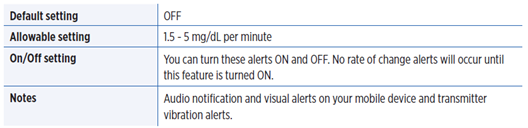
The Eversense® 365 App does have Rate of Change Alerts. To utilize this feature, you will need to turn it on in the App.
The Rate of Change Alerts let you know when your glucose level is falling or rising faster than the Rate Alert setting you choose.
To turn this feature ON, tap Menu > Settings > Glucose to display the GLUCOSE SETTINGS screen.
The system will continue to receive data from the smart transmitter as long as the Bluetooth® remains turned on your mobile device. Bluetooth must be manually turned on when in airplane mode on some mobile devices.
Still have questions?
The Eversense team is dedicated and ready to provide the answers and support you need. Simply click the link below.
The Eversense® 365 Continuous Glucose Monitoring (CGM) System is indicated for continually measuring glucose levels for up to one year in people (18 years and older) with diabetes. The system is indicated for use to replace fingerstick blood glucose (BG) measurements for diabetes treatment decisions. Fingerstick BG measurements are required for calibration one time a week after day 13, and when symptoms do not match CGM information or when taking medications of the tetracycline class. The sensor insertion and removal procedures are performed by a health care provider. The Eversense 365 CGM System is a prescription device; patients should talk to their health care provider to learn more.
For important safety information, see bit.ly/eversensesafety
Eversense, Eversense 365 Continuous Glucose Monitoring, and the Eversense logo are trademarks of Senseonics, Incorporated. All other trademarks are properties of their respective owners and are used solely for informative purposes. No relationship or endorsement should be inferred or implied.
Apple Watch® is a product of Apple, Inc., and may be separately purchased from an authorized Apple retailer. Apple Watch is not included with the Eversense CGM System. Android is a trademark of Google LLC.
MKT-001692 Rev 1


 Call My Eversense Specialist Now
 Schedule a Call